

Refresh Rate (Hz) vs Screen Resolution: Why 144Hz 1440p Beats 60Hz 4K for Most People
Confused between 4K 60Hz and 1440p 144Hz? We break down the physics of refresh rate vs resolution, motion clarity, cable bandwidth, and GPU demands.
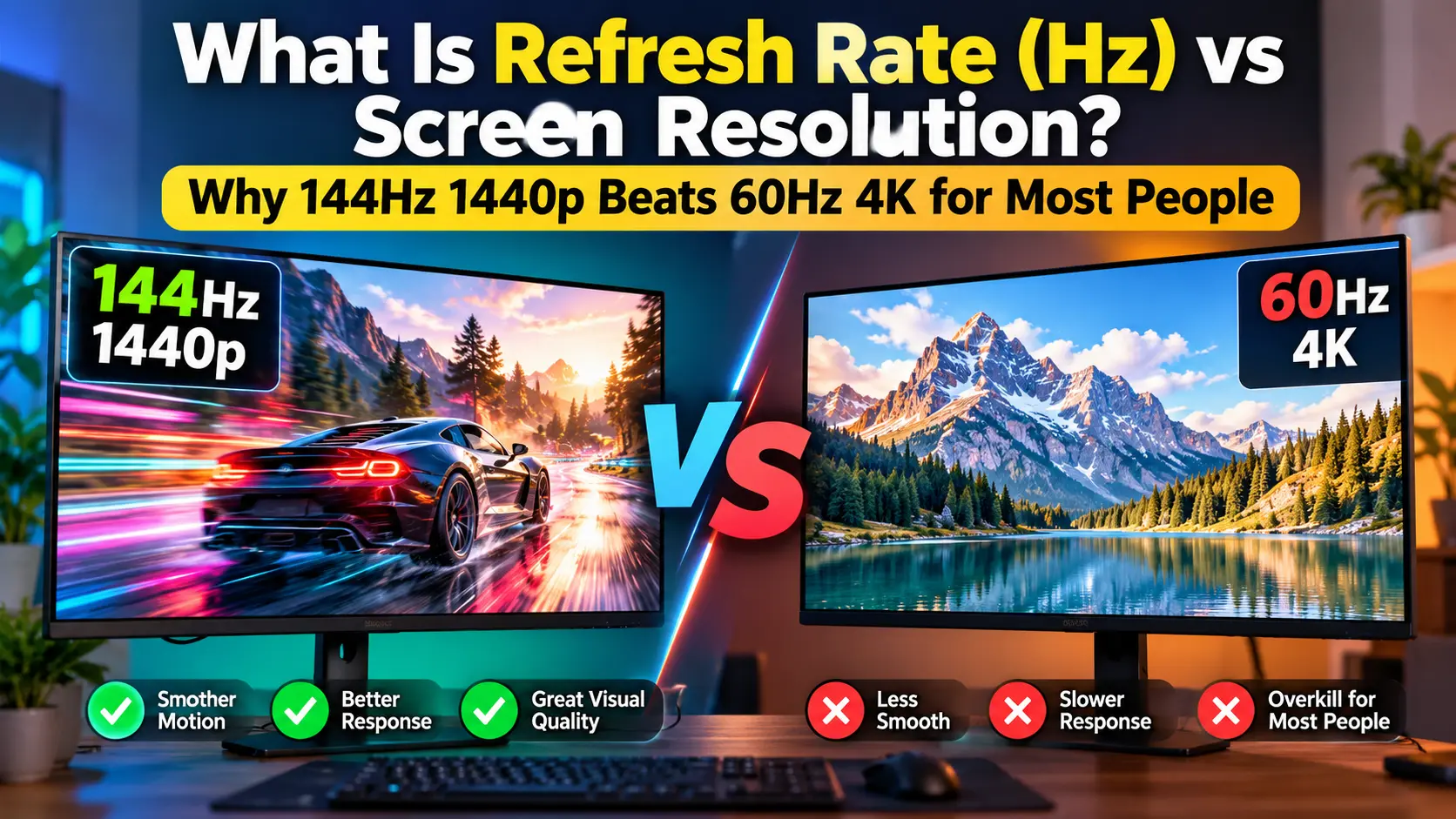
When shopping for an external monitor or configuring a modern desktop workstation, buyers almost inevitably hit the same fork in the road: Should you buy a 4K (3840×2160) display running at a standard 60Hz refresh rate, or a 1440p (2560×1440, Quad HD) panel pushing a high refresh rate of 144Hz (or 165Hz–240Hz)?
At first glance, marketing specs push numbers that seem simple: 4K boasts 8.29 million pixels, while 1440p offers roughly 3.69 million pixels. On paper, 4K gives you more than double the spatial detail. Yet, ask competitive gamers, software engineers, video editors, and everyday office power users who have tried both side-by-side, and an overwhelming majority will tell you the exact same thing: a 144Hz 1440p monitor delivers a dramatically superior daily experience compared to a 60Hz 4K monitor.
Why does this happen? The answer lies in the fundamental difference between spatial resolution (how many pixels are drawn on screen) and temporal resolution (how frequently those pixels update over time).
In this comprehensive technical guide, we will unpack the mechanics of refresh rates vs display resolutions, calculate actual video bandwidth bottlenecks, analyze human visual perception, break down GPU workload requirements, and demonstrate why 144Hz 1440p hits the undisputed sweet spot for both gaming and general desktop productivity.
1. Defining the Fundamentals: Spatial Resolution vs. Temporal Resolution
To understand the trade-offs, we must separate what monitors render in physical space from what they render across time.
What is Screen Resolution? (Spatial Resolution)
Screen resolution represents the total number of distinct physical pixels available across the horizontal and vertical dimensions of the panel matrix.
- Full HD (1080p): $1920 \times 1080 = 2,073,600\text{ pixels}$ (~2.07 Megapixels)
- Quad HD / 2K (1440p): $2560 \times 1440 = 3,686,400\text{ pixels}$ (~3.69 Megapixels)
- 4K Ultra HD (2160p): $3840 \times 2160 = 8,294,400\text{ pixels}$ (~8.29 Megapixels)
Spatial resolution determines static sharpness, the fine detail in high-resolution photographs, subpixel font crispness, and the amount of desktop canvas space available before scaling is introduced.
What is Refresh Rate? (Temporal Resolution)
Refresh rate, measured in Hertz (Hz), specifies the exact number of times per second the display hardware cycles its internal scanout buffer and redraws the physical image onto the panel.
- 60Hz: The panel refreshes the screen image once every 16.67 milliseconds (60 times per second).
- 120Hz: The panel refreshes the screen image once every 8.33 milliseconds (120 times per second).
- 144Hz: The panel refreshes the screen image once every 6.94 milliseconds (144 times per second).
- 240Hz: The panel refreshes the screen image once every 4.17 milliseconds (240 times per second).
While spatial resolution defines how crisp a frozen image looks, refresh rate dictates how clearly and fluidly objects move across the screen.
+-------------------------------------------------------------------------------+
|                       Frame Time Interval Comparison                          |
+-------------------------------------------------------------------------------+
| 60Hz  | [========== 16.67ms ==========]                                       |
| 120Hz | [===== 8.33ms =====]                                                  |
| 144Hz | [==== 6.94ms ====]                                                    |
| 240Hz | [== 4.17ms ==]                                                        |
+-------------------------------------------------------------------------------+
2. Refresh Rate (Hz) vs Frame Rate (FPS): What Is the Real Difference?
A common source of confusion among users is mixing up Hertz (Hz) and Frames Per Second (FPS). Although they both describe image frequency, they originate from entirely separate hardware components:
| Characteristic | Refresh Rate (Hz) | Frame Rate (FPS) |
|---|---|---|
| Origin Source | The Monitor / Display Panel hardware | The Graphics Card (GPU) & Game Engine |
| Fixed or Dynamic | Fixed baseline (or dynamic via G-Sync/FreeSync) | Highly variable depending on scene load |
| Physical Meaning | How often the physical screen can refresh | How many rendered frames the GPU outputs per second |
| Bottleneck Consequence | Cannot display more frames than its max Hz | Low FPS causes stutters regardless of monitor Hz |
The Mismatch Problem: Screen Tearing vs Input Lag
When your GPU produces frames at a rate that does not synchronize with the monitor’s fixed refresh cycles, visual artifacts occur:
- Screen Tearing: If your GPU renders 110 FPS on a fixed 60Hz display, the monitor requests the next frame mid-scanout. The top half of the screen displays Frame #1 while the bottom half displays Frame #2, causing a horizontal shear tear across moving objects.
- V-Sync Stutter & Latency: Enabling traditional software V-Sync forces the GPU to hold back completed frames until the monitor is ready for the vertical blanking interval (VBI). This eliminates tearing, but on a 60Hz screen, it injects up to 16.67ms–33.3ms of input delay and causes severe micro-stutters whenever the framerate dips below 60.
- Variable Refresh Rate (VRR / G-Sync / FreeSync): Modern gaming monitors synchronize the monitor’s refresh cycle directly to the GPU’s instantaneous render rate. A 144Hz VRR monitor smoothly flexes anywhere between 48Hz and 144Hz in real time, delivering tearing-free, stutter-free performance.
3. The Science of Motion Blur: Why 60Hz Blurs Regardless of Resolution
Here is a fact that catches many monitor buyers off guard: A 4K monitor at 60Hz displays significantly more motion blur than a 1080p or 1440p monitor at 144Hz.
You can buy the most expensive, hyper-sharp 4K OLED or IPS panel in the world, but the moment you pan a 3D camera or drag a window quickly across the desktop, all that 8.29-megapixel clarity dissolves into an illegible smear. Why does this happen?
The Sample-and-Hold Display Architecture
Modern LCD and OLED displays operate on a sample-and-hold mechanism. Unlike old CRT monitors that fired an electron beam with an instantaneous phosphorescent decay, flat panels draw a frame and hold its light steady until the next refresh cycle begins.
When an object moves across your screen, your eyeballs track its smooth physical path. However, a 60Hz sample-and-hold display holds that object static in one physical coordinate for 16.67 milliseconds before instantly jumping it to the next coordinate.
Eye tracking continuous trajectory:    -------------------------->
60Hz display static step hold:         [-- 16.67ms --][-- 16.67ms --]
Retinal Projection Error:              ====== BLUR & SMEAR ======
Because your retinas are in constant motion while the image remains frozen in place, the image is physically smeared across your photoreceptor cells. This physiological phenomenon is known as eye-tracking motion blur.
Retinal Blur Calculation
The width of retinal motion blur is directly proportional to frame hold duration:
$$\text{Retinal Blur (Pixels)} = \text{Object Speed (Pixels/sec)} \times \text{Frame Hold Time (Seconds)}$$
Let’s test this equation with an object moving across the screen at a moderate panning speed of 1,200 pixels per second:
- At 60Hz (16.67ms hold time): $$\text{Blur} = 1200 \times 0.01667 = 20\text{ pixels of blur}$$
- At 144Hz (6.94ms hold time): $$\text{Blur} = 1200 \times 0.00694 = 8.3\text{ pixels of blur}$$
- At 240Hz (4.17ms hold time): $$\text{Blur} = 1200 \times 0.00417 = 5.0\text{ pixels of blur}$$
At 144Hz, motion blur is reduced by nearly 60%. On a 60Hz 4K monitor, fast movement reduces perceived detail down to sub-1080p levels. The high spatial resolution of 4K is only perceptible when content is stationary or moving at a crawl.
4. Input Latency and Responsiveness: The Feel of 144Hz
Beyond visual blur, refresh rate directly determines system responsiveness. The delay between clicking your mouse or pressing a key and seeing the corresponding pixel update on screen is heavily bounded by the display’s scanout interval.
System Input Pipeline:
[ Mouse Click ] -> [ USB Polling (1ms) ] -> [ CPU Engine Processing ] -> [ GPU Frame Render ] -> [ Display Scanout ]
On a 60Hz monitor, the screen only updates every 16.67ms. If a frame finishes rendering 1ms after the scanout window begins, that frame must sit in the framebuffer queue for nearly 16ms before the display begins pushing pixels.
On a 144Hz panel:
- The scanout window repeats every 6.94ms.
- Average display-side latency drops by roughly 10 milliseconds across the board.
- Mouse cursors feel attached directly to your physical hand rather than sliding on ice.
- Fast-paced interactions (targeting enemies in tactical shooters, scrubbing video playheads, or manipulating 3D viewports in Blender) become noticeably snappier and more precise.
5. Pixel Density (PPI) Comparison: 1440p vs 4K in the Real World
Many people assume 4K is always noticeably sharper than 1440p. In reality, perceived sharpness depends entirely on screen size and viewing distance, defined by Pixels Per Inch (PPI).
$$\text{PPI} = \frac{\sqrt{\text{Width}^2 + \text{Height}^2}}{\text{Diagonal Size in Inches}}$$
Let us calculate and compare the PPI across standard desktop monitor form factors:
| Display Resolution | Screen Size | Aspect Ratio | PPI | Optimal Distance | Scaled vs Native |
|---|---|---|---|---|---|
| 1080p (1920×1080) | 24 inches | 16:9 | 91.79 PPI | 38 in (96 cm) | 100% Native |
| 1080p (1920×1080) | 27 inches | 16:9 | 81.59 PPI | 42 in (107 cm) | 100% Native (Grainy) |
| 1440p (2560×1440) | 27 inches | 16:9 | 108.79 PPI | 32 in (81 cm) | 100% Native (Sweet Spot) |
| 1440p (2560×1440) | 32 inches | 16:9 | 91.79 PPI | 38 in (96 cm) | 100% Native |
| 4K UHD (3840×2160) | 27 inches | 16:9 | 163.18 PPI | 21 in (53 cm) | Requires 150% Scaling |
| 4K UHD (3840×2160) | 32 inches | 16:9 | 137.68 PPI | 25 in (64 cm) | Requires 125%–150% Scaling |
The 27-Inch 1440p Sweet Spot
A 27-inch 1440p monitor hits 108.79 PPI. At normal desktop viewing distances (roughly 24 to 32 inches from your eyes):
- Individual pixels are small enough that text is crisp, clean, and free of jagged aliasing.
- It operates at 100% native display scaling in Windows, Linux, and macOS without needing fractional scaling algorithms that can cause legacy desktop applications to blur.
- You gain 77% more desktop working space than a standard 1080p monitor.
By contrast, a 27-inch 4K monitor sits at 163.18 PPI. Running 4K at 100% scaling makes UI text, menus, and application icons microscopic. Users are forced to set Windows display scaling to 150%. At 150% scaling:
$$\text{Effective Logical Canvas} = \frac{3840}{1.5} \times \frac{2160}{1.5} = 2560 \times 1440$$
You get the exact same workspace area as a native 1440p screen. While the text is undeniably sharper on the 4K panel when sitting 18 inches away, the functional utility is identical—and you pay a massive penalty in refresh rate, GPU load, and price.
6. GPU Performance Requirements: The 4K Rendering Penalty
One of the most critical factors often ignored by prospective monitor buyers is the GPU compute cost. Pushing high frame rates at 4K requires immense computational horsepower.
Consider the raw pixel throughput per second that your graphics card must calculate:
Pixel Throughput per Second:
1080p @ 60Hz:   1920 x 1080 x 60   =   124,416,000 pixels/sec (~124 MP/s)
1440p @ 60Hz:   2560 x 1440 x 60   =   221,184,000 pixels/sec (~221 MP/s)
1440p @ 144Hz:  2560 x 1440 x 144  =   530,841,600 pixels/sec (~531 MP/s)
4K UHD @ 60Hz:  3840 x 2160 x 60   =   497,664,000 pixels/sec (~498 MP/s)
4K UHD @ 144Hz: 3840 x 2160 x 144  = 1,194,393,600 pixels/sec (~1.19 GP/s)
Notice that 1440p at 144Hz and 4K at 60Hz process roughly the same raw pixel throughput (~500 to ~530 Megapixels per second). However, the way your GPU handles those workloads in 3D gaming and creative software is completely different:
In Modern Gaming
- At 4K 60Hz: Shading pipelines, ray tracing cores, rasterizers, and VRAM memory bandwidth are hammered simultaneously. Even flagship GPUs like an RTX 4080 or RX 7900 XTX often struggle to maintain a locked 60 FPS in demanding titles at native 4K with maximum settings. When a frame drop occurs below 60 FPS, the experience stutters heavily.
- At 1440p 144Hz: The rendering load per frame is less than half that of 4K ($3.69\text{M}$ vs $8.29\text{M}$ pixels). Mid-range GPUs (such as an RTX 4070 or RX 7800 XT) can comfortably drive modern titles at 100–144+ FPS. Even if a demanding game drops from 140 FPS to 95 FPS, VRR keeps the action completely smooth. You never suffer the catastrophic jarring sensation of dropping from 60 to 45 FPS.
7. Display Cable Bandwidth: HDMI vs DisplayPort Limits
Another physical bottleneck between your computer and your display is the video cable. Every pixel, color channel (8-bit vs 10-bit HDR), and refresh cycle consumes finite digital bandwidth across the display interface.
Uncompressed Video Data Bandwidth Formula
The formula to compute required uncompressed video stream bandwidth is:
$$\text{Bandwidth (Gbps)} = \text{Horizontal Total} \times \text{Vertical Total} \times \text{Refresh Rate} \times \text{Bits per Pixel} \times 1.25\text{ (Timing Overhead)}$$
Here is how common connection standards support 1440p 144Hz vs 4K 60Hz / 144Hz:
| Interface Standard | Max Data Rate (Gbps) | 1440p @ 144Hz (8-bit SDR) | 1440p @ 144Hz (10-bit HDR) | 4K @ 60Hz (8-bit SDR) | 4K @ 144Hz (10-bit HDR) |
|---|---|---|---|---|---|
| HDMI 2.0 | 14.4 Gbps | Supported | Requires 4:2:2 Subsampling | Supported | Not Supported |
| HDMI 2.1 | 42.6 Gbps | Native Support | Native Support | Native Support | Native Support |
| DisplayPort 1.2 | 17.28 Gbps | Supported | Supported | Supported | Not Supported |
| DisplayPort 1.4 | 25.92 Gbps | Native Support | Native Support | Native Support | Requires DSC Compression |
| DisplayPort 2.1 | Up to 77.37 Gbps | Native Support | Native Support | Native Support | Native Support |
(Note: DSC = Display Stream Compression, a visually lossless compression standard used when physical cable bandwidth is exceeded).
Notice that 1440p 144Hz is fully supported over ubiquitous, budget-friendly DisplayPort 1.2 and HDMI 2.0 cables without compression. Driving high-refresh 4K requires modern HDMI 2.1 or DP 1.4 with DSC, demanding newer hardware, expensive monitors, and certified premium cables.
8. Everyday Desktop Productivity: Why High Refresh Rate Isn’t Just for Gaming
A widespread misconception is that refresh rates above 60Hz only benefit competitive eSports gamers. This could not be further from the truth.
Once you work on a 120Hz or 144Hz monitor for an 8-hour workday, going back to a 60Hz screen feels noticeably sluggish. Here is why high refresh rate transforms desktop productivity:
1. Document & Code Scrolling Readability
When scrolling through thousands of lines of code in VS Code, dense spreadsheets in Excel, or long legal PDFs at 60Hz, the text turns into an unreadable vibration until you stop scrolling. At 144Hz, your eyes can comfortably read function names, row numbers, and headers in real time while scrolling quickly down the page.
2. Reduced Visual Fatigue and Headaches
The human visual system is extremely sensitive to micro-stuttering and flickering in the peripheral field. The smooth motion of 144Hz reduces the micro-adjustments your ocular muscles make when tracking UI elements, drag-and-drop windows, and window snap animations, leading to noticeably reduced eye strain after long hours at your desk.
3. Mouse Precision and Drag Latency
At 144Hz, mouse pointer polling translates into real-time visual feedback. In precision tasks like UI design (Figma), video editing timeline scrubbing (DaVinci Resolve / Premiere Pro), and photo retouching (Photoshop), dragging vector nodes and cursor adjustments feel instant and natural.
9. Comprehensive Comparison: 1440p 144Hz vs 4K 60Hz
To help you make an informed decision for your specific setup, here is the complete head-to-head breakdown:
+---------------------------------------------------------------------------------------+
| FEATURE                  | 1440p @ 144Hz / 165Hz          | 4K UHD @ 60Hz             |
+---------------------------------------------------------------------------------------+
| Motion Smoothness        | Exceptional (6.94ms frame time)| Poor (16.67ms frame time) |
| Motion Blur              | Low                            | High                      |
| Input Latency            | ~4ms - 7ms                     | ~16ms - 25ms              |
| Text Crispness (27-inch) | Very Good (108 PPI)            | Superior (163 PPI)        |
| OS Scaling Required      | 100% Native (Zero scaling bugs)| 150% (Fractional scaling) |
| GPU Load in Games        | Moderate (Easy 100+ FPS)       | Punishing (Struggles 60)  |
| Price-to-Performance     | Outstanding ($180 - $280)      | Mediocre ($250 - $450)    |
| Desktop Workday Comfort  | Fluid, easy on the eyes        | Sharp, but sluggish motion|
| Best Used For            | All-rounders, Gamers, Devs     | Photo Retouching, 4K Video|
+---------------------------------------------------------------------------------------+
10. The Verdict: Who Should Choose Which?
While 144Hz 1440p is the clear victor for the majority of computer users, 4K 60Hz still has valid use cases. Here is how to decide based on your daily workload:
Choose a 1440p 144Hz (or 165Hz+) Monitor If:
- You play games of any kind: Whether you play fast-paced shooters (Valorant, CS2, Apex Legends) or single-player RPGs (Cyberpunk 2077, Elden Ring), the fluid motion and headroom of 144Hz with VRR provide an exponentially better gaming experience than a capped 60Hz screen.
- You want a 27-inch monitor: 1440p is the natural optical sweet spot for 27 inches. You avoid fractional scaling bugs in Windows and Linux while enjoying high pixel density.
- You have a mid-range graphics card: If you own an RTX 3060/4060/4070 or Radeon 6700/7700 series GPU, 1440p is the ideal target resolution for maximum fidelity without unplayable frame dips.
- You value responsiveness in daily office work: Scrolling documents, moving windows, and fluid mouse precision make daily productivity feel premium.
Choose a 4K 60Hz Monitor If:
- You do color-critical photo editing or print design: If your primary income depends on viewing ultra-fine static image details at 100% zoom without subpixel rasterization, 4K’s spatial resolution is indispensable.
- You are buying a 32-inch or larger monitor: At 32 inches, 1440p drops down to 91 PPI (comparable to a 24” 1080p screen). A 32-inch monitor benefits greatly from 4K (138 PPI) to prevent visible pixel grain.
- You watch native 4K media content: If you frequently watch native 4K Blu-ray discs or 4K HDR streaming video and rarely play fast-paced PC games.
- You work primarily on macOS: Apple’s macOS rendering engine is engineered around high-density displays (218 PPI Retina). macOS renders poorly on 108 PPI displays due to disabled subpixel font antialiasing; Mac users typically prefer 4K (scaled to look like 1440p) over native 1440p.
11. How to Verify Your Current Refresh Rate and Resolution
If you already have a high-refresh monitor, make sure you are actually utilizing its full capabilities. Millions of users inadvertently run 144Hz monitors at 60Hz for years due to default operating system settings!
On Windows 11:
- Right-click anywhere on your desktop and select Display settings.
- Scroll down and click on Advanced display.
- Under Display information, find the dropdown labeled Choose a refresh rate.
- If it is set to
59.94Hzor60.00Hz, change it to144.00Hz(or the highest value supported). - Ensure your display cable is plugged directly into your dedicated GPU, not your motherboard’s integrated HDMI port.
On macOS:
- Open System Settings -> Displays.
- Select your external monitor.
- Click the dropdown next to Refresh Rate and select 144 Hertz (or ProMotion if supported).
- Note: If using an HDMI cable on an older Mac, you may be capped at 60Hz; use a USB-C to DisplayPort 1.4 cable for full 144Hz support.
You can also test your current browser viewport and screen resolution instantly on our Live Screen Resolution Tool to see your exact rendering dimensions, device pixel ratio, and active screen bounds.
Pixel-accurate · measured on your device
What is my screen resolution?
Get your exact screen resolution, viewport, pixel density, and refresh rate — measured locally, updated live.
Run the test →Related Guides & Articles
Screen Resolution vs PPI (Pixels Per Inch): What Actually Determines Display Sharpness?
Why does a 4K TV look less sharp up close than a 1080p phone? We explain the math of PPI, angular resolution, viewing distance, and subpixel matrices.
How to Fix a Blurry Screen or Wrong Resolution on Windows 11 and macOS
Is your display fuzzy, stretched, or locked at the wrong resolution? Follow this complete, step-by-step troubleshooting guide to restore crystal-clear picture quality on Windows 11 and macOS.