

Screen Resolution vs PPI (Pixels Per Inch): What Actually Determines Display Sharpness?
Why does a 4K TV look less sharp up close than a 1080p phone? We explain the math of PPI, angular resolution, viewing distance, and subpixel matrices.
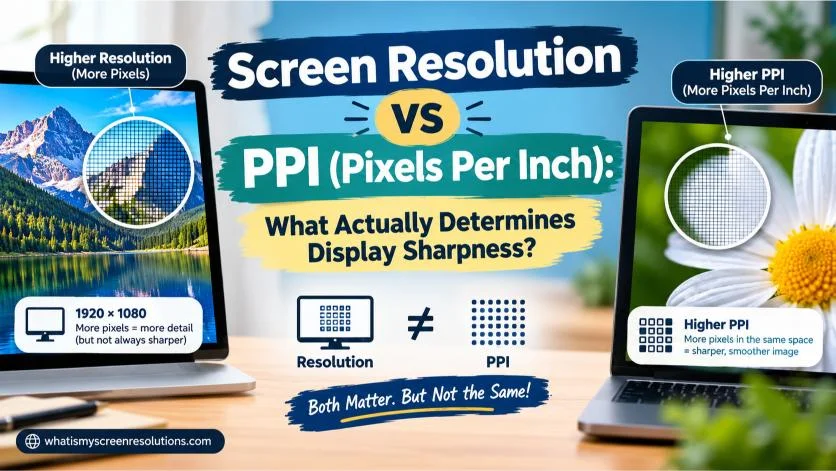
When shopping for an external monitor, laptop, tablet, or television, most consumers gravitate toward one headline marketing number: resolution. We are conditioned to believe that higher numbers automatically mean a crisper, more premium image. A 4K panel ($3840 \times 2160$) must look sharper than a 1440p panel ($2560 \times 1440$), which in turn must look sharper than a 1080p Full HD screen ($1920 \times 1080$).
Yet, bring your face a few inches away from a massive 65-inch 4K living room television, and you will clearly see individual pixel grids, jagged text edges, and rough graphic elements. Now hold an ordinary budget smartphone running at standard 1080p resolution at arm’s length: the typography looks razor-sharp, smooth, and indistinguishable from fine print on a glossy magazine.
How can a display with 8.29 million pixels look grainier than a display with only 2.07 million pixels?
The answer is that screen resolution alone does not determine display sharpness. Sharpness is governed by physical pixel density, measured in Pixels Per Inch (PPI), and the physiological limit of the human eye, known as angular resolution.
In this comprehensive engineering guide, we break down the exact mathematics of PPI, compare pixel density across modern hardware form factors, examine the optical formulas behind viewing distances, explore the impact of subpixel stripe arrangements (RGB vs PenTile OLED), and show you how to choose the right display for your desk.
1. Defining the Core Concepts: Resolution vs. Pixel Density
To understand why resolution can mislead buyers, we must separate raw spatial pixel counts from the physical surface area over which those pixels are distributed.
What is Screen Resolution?
Screen resolution is an absolute count of the physical photolithographic pixel columns and rows across the active display matrix.
- 1080p (Full HD): $1920 \times 1080 = 2,073,600\text{ pixels}$ (~2.07 Megapixels)
- 1440p (Quad HD / 2K): $2560 \times 1440 = 3,686,400\text{ pixels}$ (~3.69 Megapixels)
- 4K (Ultra HD): $3840 \times 2160 = 8,294,400\text{ pixels}$ (~8.29 Megapixels)
- 5K (Studio / Ultra-wide): $5120 \times 2880 = 14,745,600\text{ pixels}$ (~14.75 Megapixels)
Resolution tells you how many total puzzle pieces make up the digital picture, but it says absolutely nothing about how large those puzzle pieces physically are.
What is PPI (Pixels Per Inch)?
PPI (Pixels Per Inch) measures the linear spatial density of a display. It calculates the exact number of physical pixels packed into a single linear inch along the screen’s surface.
While resolution is a fixed whole number, PPI is inversely related to physical screen dimensions:
$$\text{Same Resolution} + \text{Larger Physical Screen} = \text{Lower PPI (Worse Sharpness)}$$ $$\text{Same Resolution} + \text{Smaller Physical Screen} = \text{Higher PPI (Greater Sharpness)}$$
If you take a 4K resolution ($3840 \times 2160$) and squeeze it onto a 15.6-inch laptop panel, the pixels are microscopic and tightly clustered. If you take that exact same 4K resolution and stretch it across an 85-inch television, each individual pixel becomes roughly thirty times larger in surface area.
+-----------------------------------------------------------------------------------------+
|                               Pixel Size Visual Comparison                              |
+-----------------------------------------------------------------------------------------+
| 15.6" 4K Laptop Panel (282 PPI):  [.] [.] [.] [.]   <- Microscopic, invisible to naked eye|
| 27.0" 4K Desktop Monitor (163 PPI): [..] [..] [..]   <- Extremely clean and crisp        |
| 65.0" 4K Living Room TV (68 PPI):  [====] [====]   <- Visible pixel structure up close |
+-----------------------------------------------------------------------------------------+
2. The Mathematical Formula: How to Calculate PPI
Calculating the exact pixel density of any electronic display requires basic geometry using the Pythagorean theorem to calculate the diagonal pixel dimension, divided by the screen’s physical diagonal size in inches.
The Standard PPI Equation
$$\text{PPI} = \frac{\sqrt{W^2 + H^2}}{D}$$
Where:
- $W$ = Horizontal resolution in physical pixels
- $H$ = Vertical resolution in physical pixels
- $D$ = Diagonal screen size in inches
Step-by-Step Calculation Example: 27-inch 1440p Monitor
Let’s calculate the PPI of a standard 27-inch Quad HD monitor ($2560 \times 1440$):
- Square horizontal and vertical pixel counts: $$W^2 = 2560^2 = 6,553,600$$ $$H^2 = 1440^2 = 2,073,600$$
- Sum the squares: $$6,553,600 + 2,073,600 = 8,627,200$$
- Calculate the square root (diagonal pixel distance): $$\sqrt{8,627,200} \approx 2937.21\text{ diagonal pixels}$$
- Divide by diagonal size in inches (27.0): $$\text{PPI} = \frac{2937.21}{27.0} = \mathbf{108.79\text{ PPI}}$$
Calculating Dot Pitch (Pixel Pitch)
Dot pitch represents the physical distance between the centers of two adjacent subpixels, usually expressed in millimeters (mm). It is directly related to PPI:
$$\text{Dot Pitch (mm)} = \frac{25.4}{\text{PPI}}$$
For our 27-inch 1440p monitor: $$\text{Dot Pitch} = \frac{25.4}{108.79} = \mathbf{0.233\text{ mm}}$$
A smaller dot pitch translates directly into finer subpixel precision and smoother typographic curves.
3. Comprehensive PPI Hardware Comparison Matrix
The table below demonstrates how physical screen diagonal dramatically shifts the true sharpness of standard resolutions across modern consumer devices:
| Category | Typical Device Form Factor | Physical Diagonal | Native Resolution | Aspect Ratio | Density (PPI) | Dot Pitch |
|---|---|---|---|---|---|---|
| Smartphones | Compact Flagship Phone | 6.1 inches | $2556 \times 1179$ | 19.5:9 | 460 PPI | 0.055 mm |
| Smartphones | Large Pro Max Phone | 6.7 inches | $2796 \times 1290$ | 19.5:9 | 460 PPI | 0.055 mm |
| Smartphones | Budget Android Phone | 6.5 inches | $2400 \times 1080$ | 20:9 | 405 PPI | 0.063 mm |
| Tablets | Compact 8-inch Tablet | 8.3 inches | $2266 \times 1488$ | 3:2 | 326 PPI | 0.078 mm |
| Tablets | 11-inch Professional Tablet | 11.0 inches | $2420 \times 1668$ | ~4:3 | 264 PPI | 0.096 mm |
| Laptops | 13.6-inch Portable Laptop | 13.6 inches | $2560 \times 1664$ | 16:10 | 224 PPI | 0.113 mm |
| Laptops | 16-inch Pro Workstation | 16.2 inches | $3456 \times 2234$ | 16:10 | 254 PPI | 0.100 mm |
| Laptops | Budget 15.6-inch Laptop | 15.6 inches | $1920 \times 1080$ | 16:9 | 141 PPI | 0.180 mm |
| Monitors | 24-inch Desktop Monitor | 23.8 inches | $1920 \times 1080$ | 16:9 | 92.6 PPI | 0.274 mm |
| Monitors | 27-inch Desktop Monitor | 27.0 inches | $1920 \times 1080$ | 16:9 | 81.6 PPI | 0.311 mm |
| Monitors | 27-inch Quad HD Monitor | 27.0 inches | $2560 \times 1440$ | 16:9 | 108.8 PPI | 0.233 mm |
| Monitors | 27-inch 4K Monitor | 27.0 inches | $3840 \times 2160$ | 16:9 | 163.2 PPI | 0.156 mm |
| Monitors | 27-inch 5K Retina Display | 27.0 inches | $5120 \times 2880$ | 16:9 | 217.6 PPI | 0.117 mm |
| Monitors | 32-inch 4K Monitor | 31.5 inches | $3840 \times 2160$ | 16:9 | 139.9 PPI | 0.182 mm |
| Monitors | 34-inch Ultrawide Monitor | 34.0 inches | $3440 \times 1440$ | 21:9 | 109.7 PPI | 0.232 mm |
| Televisions | 55-inch 4K Living Room TV | 54.6 inches | $3840 \times 2160$ | 16:9 | 80.7 PPI | 0.315 mm |
| Televisions | 65-inch 4K Living Room TV | 64.5 inches | $3840 \times 2160$ | 16:9 | 68.3 PPI | 0.372 mm |
| Televisions | 75-inch 4K Living Room TV | 74.5 inches | $3840 \times 2160$ | 16:9 | 59.2 PPI | 0.429 mm |
Notice that a 55-inch 4K television has lower pixel density (80.7 PPI) than an inexpensive 24-inch 1080p monitor (92.6 PPI)! If you were to sit 20 inches away from that 4K TV, text would look noticeably coarser and grainier than on an ordinary office desktop monitor.
4. The Human Eye and Angular Resolution: What Makes a Display “Retina”?
Why can you comfortably watch a 65-inch 4K television with a seemingly dismal 68.3 PPI without complaining about blurriness?
Because perceived sharpness is a function of pixel density multiplied by viewing distance.
Viewer's Eye  <------------------- Viewing Distance (V) ------------------->  Display Panel
      O                                                                       [Pixel Matrix]
       \  <- Visual Angle Theta (Arcminutes) ->                             /
Visual Acuity of Normal Human Vision (20/20 Snellen)
Optometry defines standard 20/20 human vision as the ability to resolve two high-contrast points separated by an angular distance of 1 arcminute ($\frac{1}{60}\text{ of a degree}$, or $\approx 0.0167^\circ$).
In display engineering, this is measured as Pixels Per Degree (PPD):
$$\text{PPD} = 2 \times V \times \text{PPI} \times \tan\left(\frac{1^\circ}{2}\right)$$
Where $V$ is viewing distance in inches.
When a display achieves 60 Pixels Per Degree (PPD) at a given distance, individual pixels merge into a continuous, seamless optical surface. Beyond 60 PPD, having more pixels yields practically zero perceptible sharpness benefit to the average human eye.
The Retina Distance Formula
To calculate the minimum distance at which individual pixels become indistinguishable to a person with standard 20/20 vision:
$$\text{Retina Distance (Inches)} = \frac{3438}{\text{PPI}}$$
(The constant 3438 derives from $\frac{1}{\tan(1’/60)}$, converting angular resolution into radians).
Applying this formula illustrates why different hardware categories target radically different PPI values:
| Device Category | Average PPI | Retina Threshold Distance | Real-World Viewing Distance | Perceived Quality |
|---|---|---|---|---|
| Smartphones | 460 PPI | 7.5 inches (19 cm) | 10 to 14 inches | Imperceptible Pixels (Flawless) |
| Tablets | 264 PPI | 13.0 inches (33 cm) | 15 to 18 inches | Imperceptible Pixels |
| Laptops | 224 PPI | 15.3 inches (39 cm) | 18 to 22 inches | Imperceptible Pixels |
| 27” 5K Monitor | 218 PPI | 15.8 inches (40 cm) | 24 to 28 inches | Imperceptible Pixels (True Retina) |
| 27” 4K Monitor | 163 PPI | 21.1 inches (54 cm) | 24 to 28 inches | Imperceptible at normal distance |
| 27” 1440p Monitor | 109 PPI | 31.5 inches (80 cm) | 24 to 28 inches | Very slight pixel grain visible |
| 27” 1080p Monitor | 82 PPI | 42.0 inches (107 cm) | 24 to 28 inches | Noticeable pixel grid & aliasing |
| 65” 4K Television | 68 PPI | 50.5 inches (1.28 m) | 8 to 10 feet (2.4–3.0 m) | Imperceptible Pixels |
This explains the television mystery: you view your living room TV from 9 feet away. At 9 feet (108 inches), a 65-inch 4K TV delivers more than 120 PPD—far surpassing the 60 PPD limit of your retinas.
5. Subpixel Matrices: Why RGB vs. PenTile OLED Alters Perceived PPI
PPI calculations assume every physical pixel contains three complete, identical subpixels: one Red, one Green, and one Blue subpixel arranged side-by-side in a vertical stripe.
Standard Full RGB Stripe Pixel:
+-------------------+
|  [R]   [G]   [B]  | = 1 Full Addressable Pixel (3 Subpixels)
+-------------------+
However, many modern display panels—specifically OLED smartphones, QD-OLED gaming monitors, and WOLED displays—do not use standard full RGB stripes. Instead, they share subpixels across adjacent pixel nodes.
1. PenTile Diamond Matrix (Most OLED Phones)
In a Samsung AMOLED or modern iPhone OLED screen, green subpixels are twice as numerous as red and blue subpixels because the human eye is most sensitive to green luminance.
PenTile Diamond Layout:
[Red]      [Green]      [Blue]      [Green]
   \         /             \         /
[Pixel 1] [Pixel 2]- Effective Subpixel Density: Because adjacent pixels borrow red and blue subpixels from each other, a PenTile display only has approximately 66% of the true subpixel count of a traditional RGB LCD.
- The Visual Impact: A 400 PPI PenTile OLED panel produces effective text rendering sharpness comparable to roughly a 320–330 PPI RGB LCD. This is why smartphone manufacturers push resolutions beyond 450+ PPI: to overcome the softening penalty of shared subpixel architectures.
2. QD-OLED and WOLED Subpixel Fringing on Desktop
When users connect QD-OLED or WOLED gaming monitors to a Windows PC, many report that text looks oddly blurred or surrounded by magenta and green color fringing, even on 1440p or 4K panels.
Windows ClearType font antialiasing relies strictly on the assumption that subpixels sit in a standard [R-G-B] horizontal row. When an OLED panel arranges subpixels in a triangle (QD-OLED) or includes an extra white subpixel ([R-W-B-G]), the operating system’s subpixel antialiasing algorithms light up the wrong subpixel edges, artificially degrading perceived sharpness regardless of nominal PPI.
6. The Desktop Monitor Dilemma: 1080p vs. 1440p vs. 4K at 27 Inches
The 27-inch monitor form factor is the battleground where screen resolution and PPI collide most visibly for desktop computer users.
+-----------------------------------------------------------------------------------------------+
|                       27-Inch Diagonal Display Comparison                                    |
+-----------------------------------------------------------------------------------------------+
| Specification            | 1080p Full HD           | 1440p Quad HD         | 4K Ultra HD      |
+-----------------------------------------------------------------------------------------------+
| Total Resolution         | 1920 x 1080 (2.07 MP)   | 2560 x 1440 (3.69 MP) | 3840 x 2160 (8.29|
| Pixel Density            | 81.59 PPI               | 108.79 PPI            | 163.18 PPI       |
| Dot Pitch                | 0.311 mm                | 0.233 mm              | 0.156 mm         |
| Retina Viewing Distance  | 42 inches (107 cm)      | 31.5 inches (80 cm)   | 21 inches (53 cm)|
| Standard Windows Scaling | 100% Native             | 100% Native           | 150% Scaled      |
| Text Sharpness Rating    | Poor (Noticeable grain) | Crisp (Sweet spot)    | Pin-sharp        |
| GPU Load in 3D Graphics  | Very Low                | Moderate              | Very Heavy       |
+-----------------------------------------------------------------------------------------------+
Why 27” 1080p (81.6 PPI) Is Obsolete for Office Work
At standard desktop viewing distances (roughly 24 to 26 inches), an 81.6 PPI panel falls far below the 42-inch Retina threshold. You can distinctly resolve the pixel grid around character curves, creating jagged “staircase” aliasing on letters in documents, spreadsheets, and IDE code editors. This increases ocular fatigue during long working days.
Why 27” 1440p (108.8 PPI) Is the Practical Ergonomic Sweet Spot
At 108.8 PPI:
- Individual pixel structures vanish at roughly 31 inches, rendering text sharp and legible at comfortable desk distances.
- It operates natively at 100% OS display scaling, giving you 77% more functional canvas area than 1080p without any fractional scaling glitches or blurred legacy software interfaces.
- Mid-range GPUs can drive it effortlessly at high refresh rates (144Hz–240Hz).
When 27” 4K (163.2 PPI) Makes Sense
At 163.2 PPI, pixels disappear completely at just 21 inches—closer than anyone sits at a desk. Text looks like printed paper. However, because 163.2 PPI makes UI elements unreadably tiny at native 100% scaling, you must configure Windows to 150% scaling, which shrinks your practical logical canvas back down to $2560 \times 1440$. You gain pristine sharpness, but zero additional workspace compared to native 1440p.
7. macOS vs. Windows: How Operating Systems Treat Display PPI
How sharp a screen appears is also heavily influenced by how your operating system’s font rasterizer and window compositor handle pixel scaling.
macOS: Hardcoded for High-Density (~218 PPI)
Apple designed macOS rendering around their “Retina” standard, which targets roughly 218 PPI (e.g., 27-inch 5K at $5120 \times 2880$ or 32-inch 6K at $6016 \times 3384$).
- The Problem with 108 PPI on Mac: Modern macOS versions have completely removed subpixel antialiasing (font smoothing). Connecting a standard 27-inch 1440p monitor (108.8 PPI) to a Mac often results in fuzzy, thin typography.
- The 4K Scaling Workaround: On a 27-inch 4K screen (163 PPI), macOS renders internally at a virtual 5K canvas ($5120 \times 2880$) and downsamples to 4K to achieve appropriate icon sizing. This provides razor-sharp text, but introduces a minor GPU rendering penalty.
Windows: Flexible Fractional Scaling
Windows utilizes DirectWrite and ClearType subpixel rendering. Windows handles lower PPI panels (such as 108.8 PPI) far better than macOS because ClearType actively exploits the physical red, green, and blue subpixels within each pixel to triple horizontal resolution for text edges.
8. Summary Checklist: How to Choose the Ideal Resolution & PPI
To ensure you never buy a blurry or mismatched display again, follow these hardware guidelines:
- For Smartphone Displays: Look for 400+ PPI (if OLED PenTile) or 326+ PPI (if standard RGB LCD). Anything lower will reveal grain during handheld reading.
- For Laptop Screens (13” to 16”): Aim for 200 to 250 PPI. This ensures fine typographic rendering while sitting 18 to 20 inches from the keyboard.
- For 24-inch Desktop Monitors: Stick to 1080p (92.6 PPI) as a minimum budget standard.
- For 27-inch Desktop Monitors:
- Best all-rounder / gaming / developer sweet spot: 1440p (108.8 PPI) at 100% native scaling.
- Best for graphic design, print layout, and Mac users: 4K (163.2 PPI) at 150% scaling, or 5K (217.6 PPI) at 200% scaling.
- For 32-inch Desktop Monitors: Never buy 1080p (a disastrous 68.8 PPI). Opt for 4K (139.9 PPI); 1440p at 32 inches drops down to 91.8 PPI, which looks coarse for close-up document work.
- For Living Room TVs (55” to 75”): Standard 4K (60 to 80 PPI) is more than sufficient because your viewing distance will be 7 to 10 feet away.
You can verify your current active display setup in real time on our Live Screen Resolution Tool, which instantly reports your current viewport bounds, device pixel ratio (DPR), and screen dimensions directly in your browser.
Pixel-accurate · measured on your device
What is my screen resolution?
Get your exact screen resolution, viewport, pixel density, and refresh rate — measured locally, updated live.
Run the test →Related Guides & Articles
Refresh Rate (Hz) vs Screen Resolution: Why 144Hz 1440p Beats 60Hz 4K for Most People
Confused between 4K 60Hz and 1440p 144Hz? We break down the physics of refresh rate vs resolution, motion clarity, cable bandwidth, and GPU demands.
How to Fix a Blurry Screen or Wrong Resolution on Windows 11 and macOS
Is your display fuzzy, stretched, or locked at the wrong resolution? Follow this complete, step-by-step troubleshooting guide to restore crystal-clear picture quality on Windows 11 and macOS.